> For the complete documentation index, see [llms.txt](https://docs.aviator.co/llms.txt). Markdown versions of documentation pages are available by appending `.md` to page URLs; this page is available as [Markdown](https://docs.aviator.co/inbox/custom-sections.md).
# Custom Sections
Learn how to create custom sections in Aviator Inbox to organize pull requests with personalized filters based on authors, labels, repositories, and more.
Custom sections let you create personalized views of pull requests in your Inbox. Each custom section is defined by a set of filters and appears alongside the predefined sections in your Inbox sidebar.
## Creating a custom section
To create a custom section:
1. Click **New section** at the bottom of the Inbox sidebar.
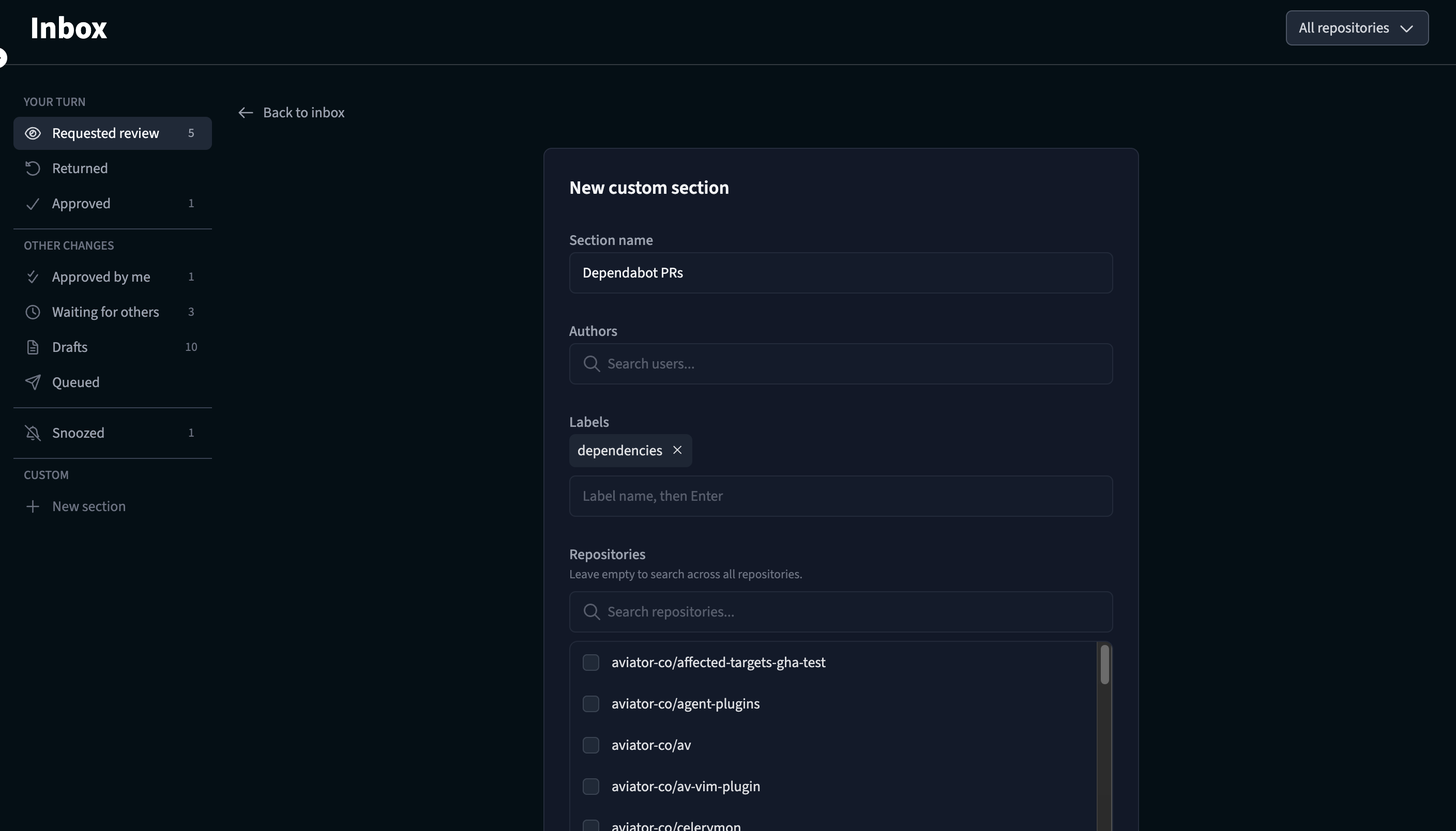
2. Give your section a name (e.g., "Dependabot PRs" or "Frontend team").
3. Configure the filters for the section (see [Available filters](#available-filters) below).
4. Save the section.
Custom section editor
## Available filters
Custom sections support the following filters:
| Filter | Description |
| ---------------- | --------------------------------------------------------------------------------------------------- |
| **Authors** | Show only PRs authored by specific GitHub users. |
| **Labels** | Show only PRs with specific GitHub labels. |
| **Repositories** | Limit the section to PRs from specific repositories. Leave empty to search across all repositories. |
| **Draft status** | Filter by whether the PR is a draft or not. |
| **PR status** | Filter by pull request status (e.g., pending, queued). |
| **CI status** | Filter by CI status — passing or failing. |
You can combine multiple filters to create precise views. For example, you could create a section that shows all PRs with the "dependencies" label to track Dependabot updates across your repositories.
## Managing custom sections
### Editing
To edit a custom section, click the edit icon next to the section name in the sidebar. You can update the section name, filters, and badge count setting.
### Reordering
Custom sections can be reordered in the sidebar by dragging them to the desired position.
### Deleting
To delete a custom section, click the edit icon and then select **Delete**. This action cannot be undone.
## Badge counts
Each custom section can optionally show a badge count in the sidebar, displaying the number of PRs matching the section's filters. This is useful for at-a-glance visibility into sections that need attention.
To toggle the badge count, edit the section and check or uncheck the **Show badge count** option.
## Examples
Here are some useful custom section configurations:
* **Dependabot PRs**: Filter by the author "dependabot" to track automated dependency updates.
* **Urgent reviews**: Filter by a "urgent" or "priority" label to surface high-priority PRs.
* **Team PRs**: Filter by authors who are members of your team.
* **Failing CI**: Filter by CI status "failing" to quickly find PRs that need fixing.
* **Release PRs**: Filter by a "release" label to track release-related changes.
---
# Agent Instructions
This documentation is published with GitBook. GitBook is the documentation platform designed so that both humans and AI agents can read, navigate, and reason over technical content effectively. Learn more at gitbook.com.
## Querying This Documentation
If you need additional information that is not directly available in this page, you can query the documentation by asking a question.
Perform an HTTP GET request on the following URL with the `ask` and `goal` query parameters:
```
GET https://docs.aviator.co/inbox/custom-sections.md?ask=&goal=
```
`ask` is the immediate question: it should be specific, self-contained, and written in natural language.
`goal` is what the user is ultimately trying to achieve, the reason they need the answer. Sharing it helps GitBook give you a better, more relevant answer. A goal is most helpful when it describes the outcome the user wants rather than restating the question. For example, with `ask=how do I create an API token`, a goal like `automate deployments from our CI pipeline` lets GitBook tailor the answer to that use case.
The response will contain a direct answer to the question and relevant excerpts and sources from the documentation.
Use this mechanism when the answer is not explicitly present in the current page, you need clarification or additional context, or you want to retrieve related documentation sections.